
Daydreaming about Cardboards

- 🔧: headless CMS: contentful.com
- 🐦: @MarioBodemann
- 📄: bit.ly/mbvrhh
- Please interrupt 👄👅!
- Please follow the slides at the given address.
- Wait some seconds to see if someone is writing down the address...
Audience
- Android programmer? 👋
- VR programmer? 👋

- Introduced at Google I/O this year.
- Soon™ first hardware available.
Google Daydream
- based on Google Cardboard
- light weight
- in different styles/interactions
- You just need a phone™
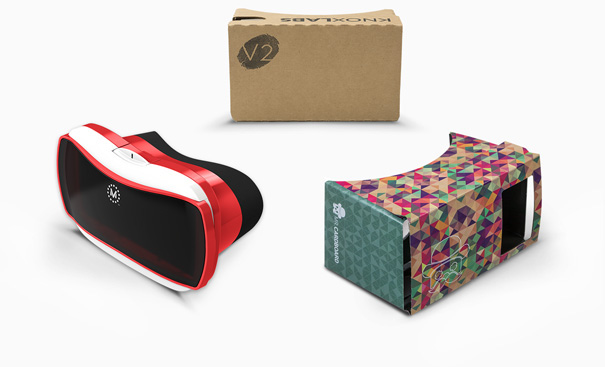
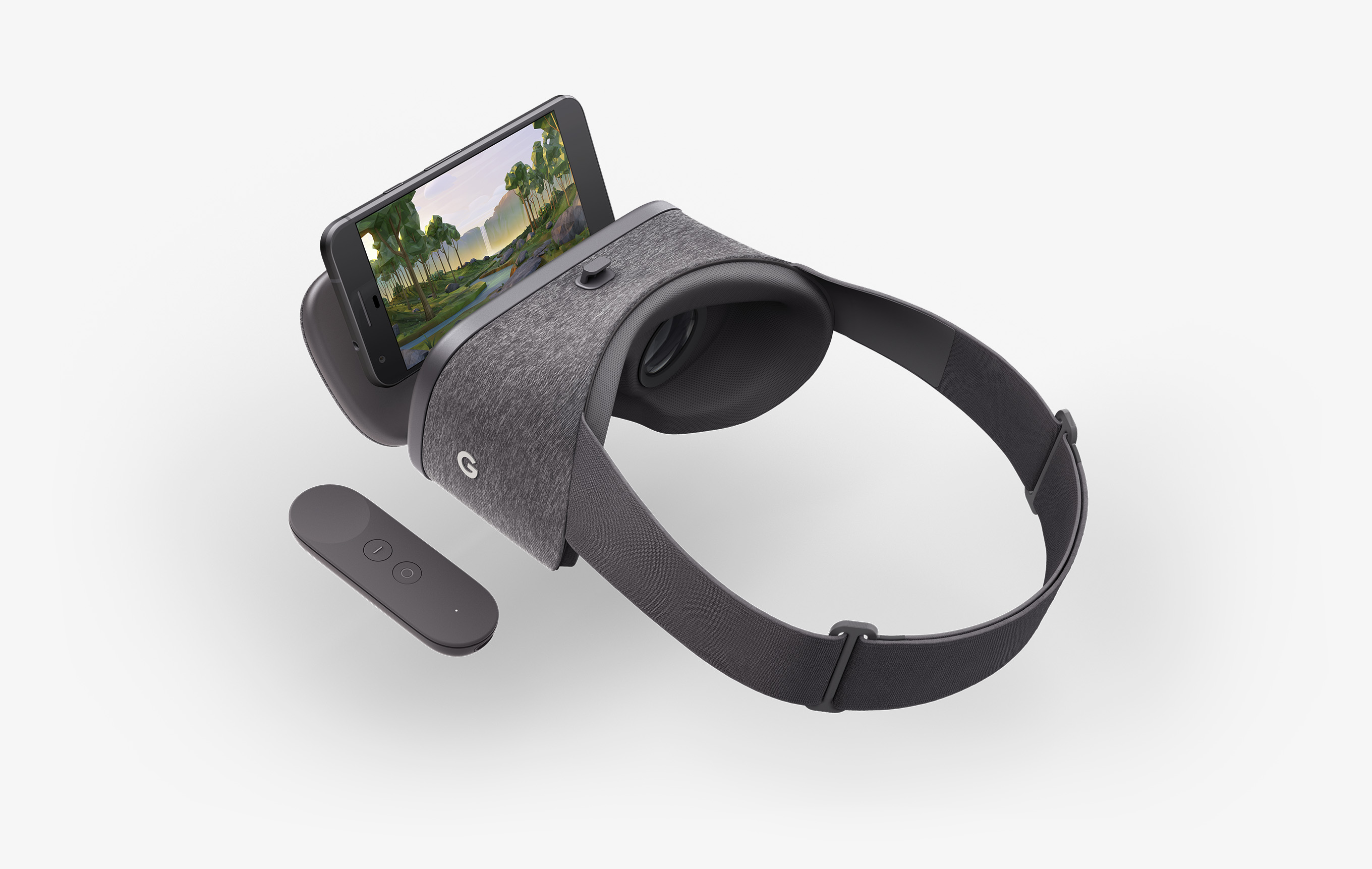
How does Daydream work?
- use 3D data, rendering two images
- one for the left and right eye
- brain combines image to 3D scene
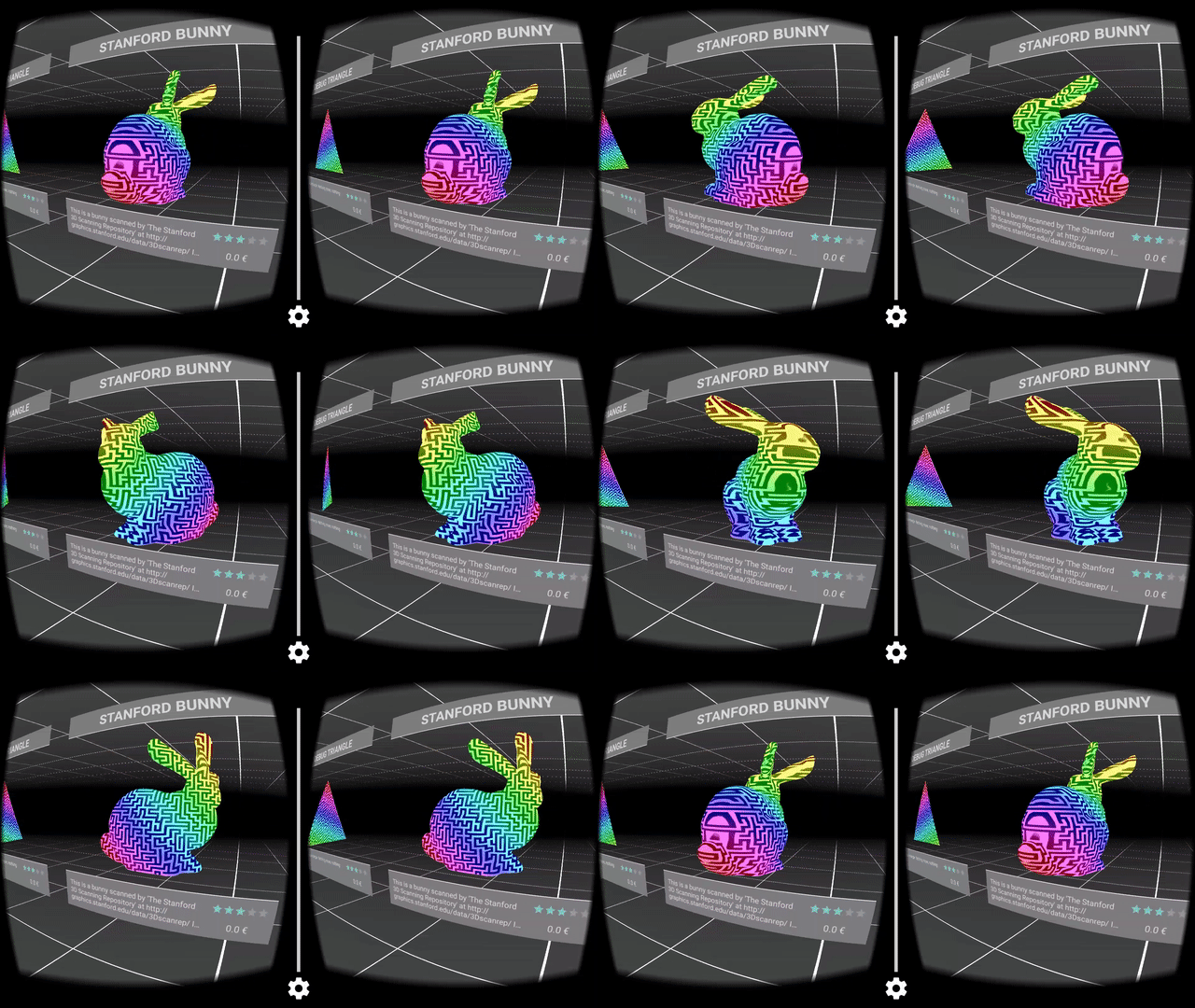
How do you program it?
GoogleVR SDK are available for
- Android (OpenGL)
- iOS (Objective C)
- Unreal Engine (NEW)
- Unity Engine (C# /JS) x (🍎, G,💻, 🐧)
What do those SDKs provide?
- lens distortion correction
- spatial audio
- head tracking
- 3D calibration
- side-by-side rendering
What else do they provide?
- stereo geometry configuration
- user input event handling
- see https://vr.google.com/developers/
Google Daydream Technical Preview
- special preview build from unity
- Out of the box, basic functionality
or Google VR Plugin
Unity demo
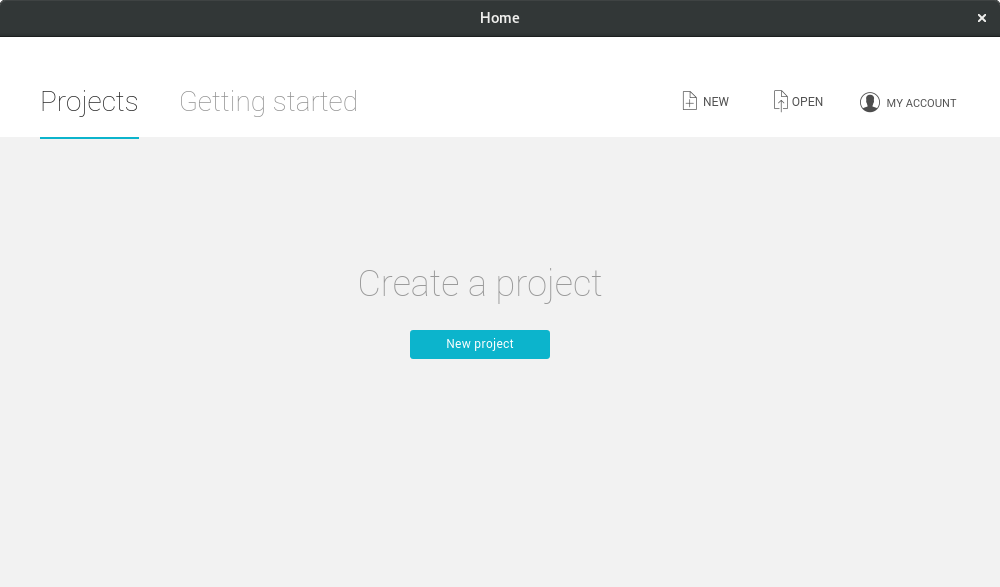
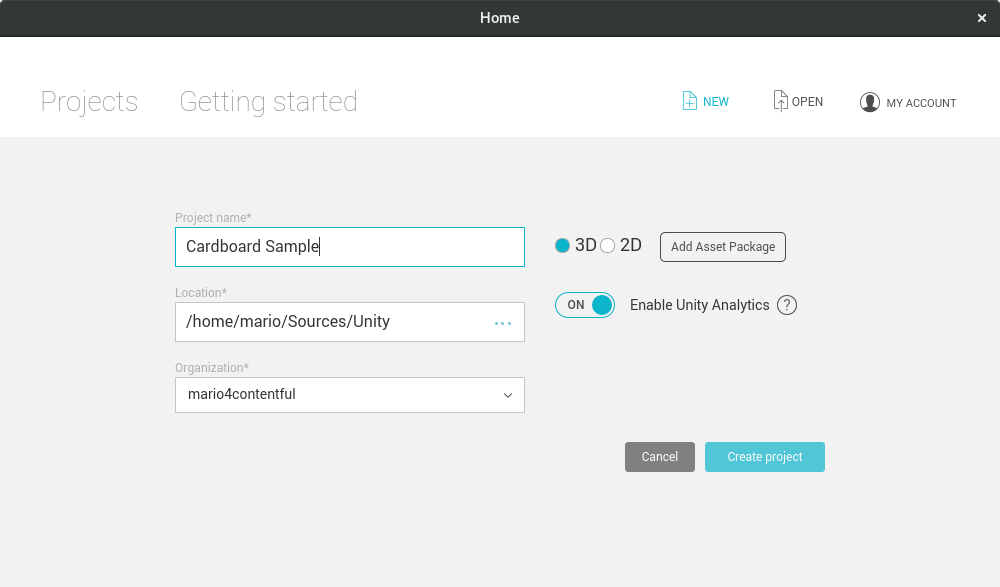
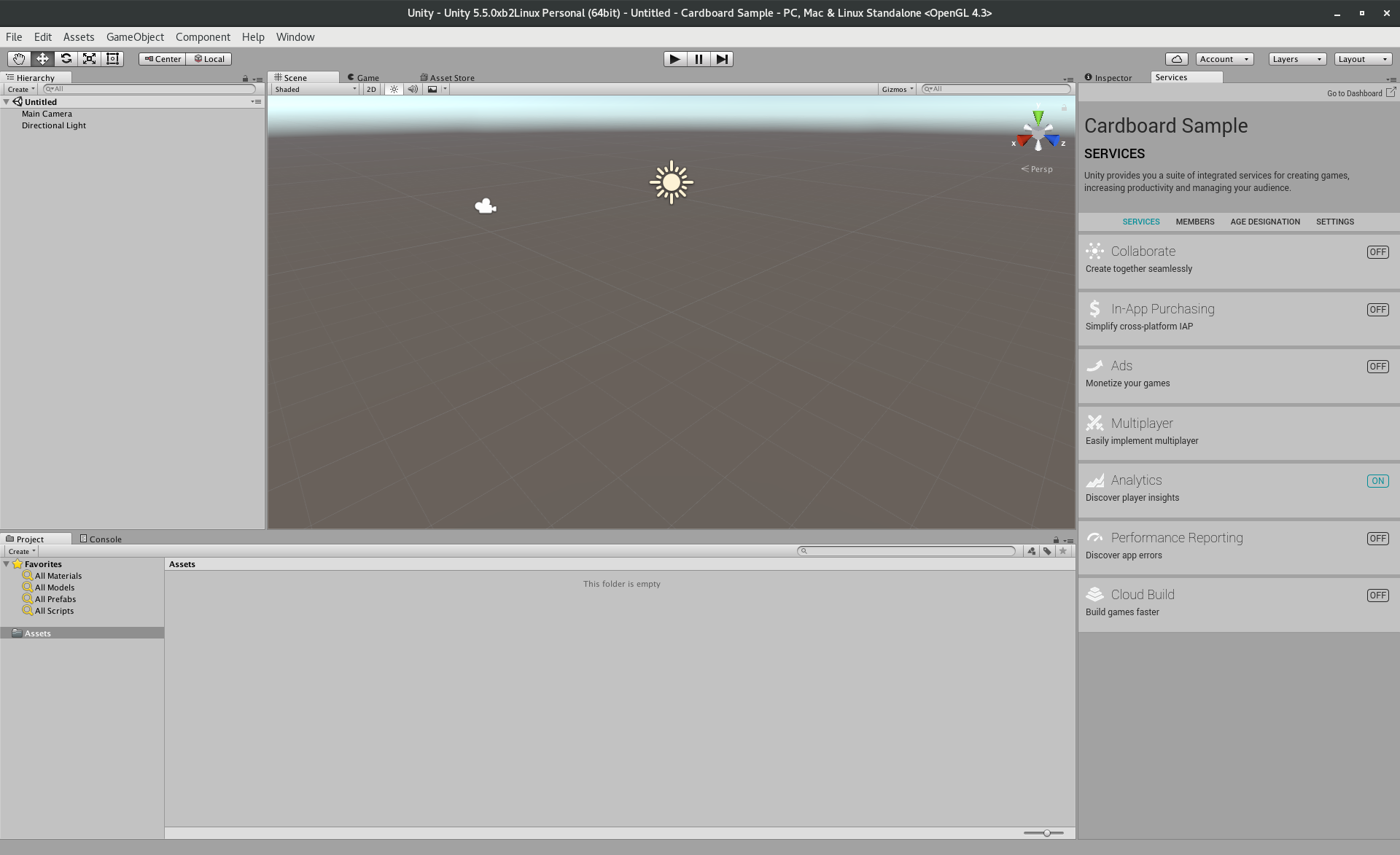
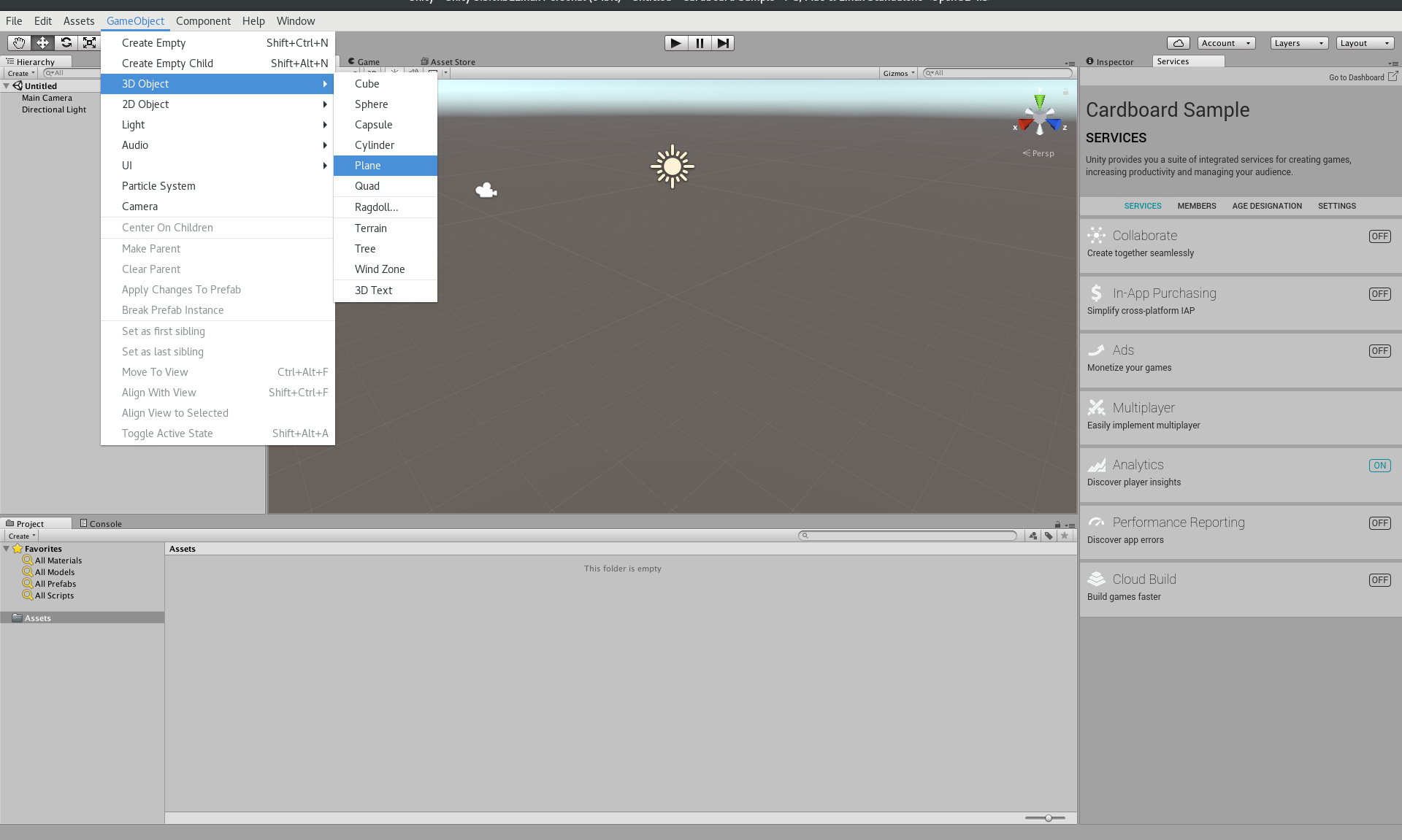
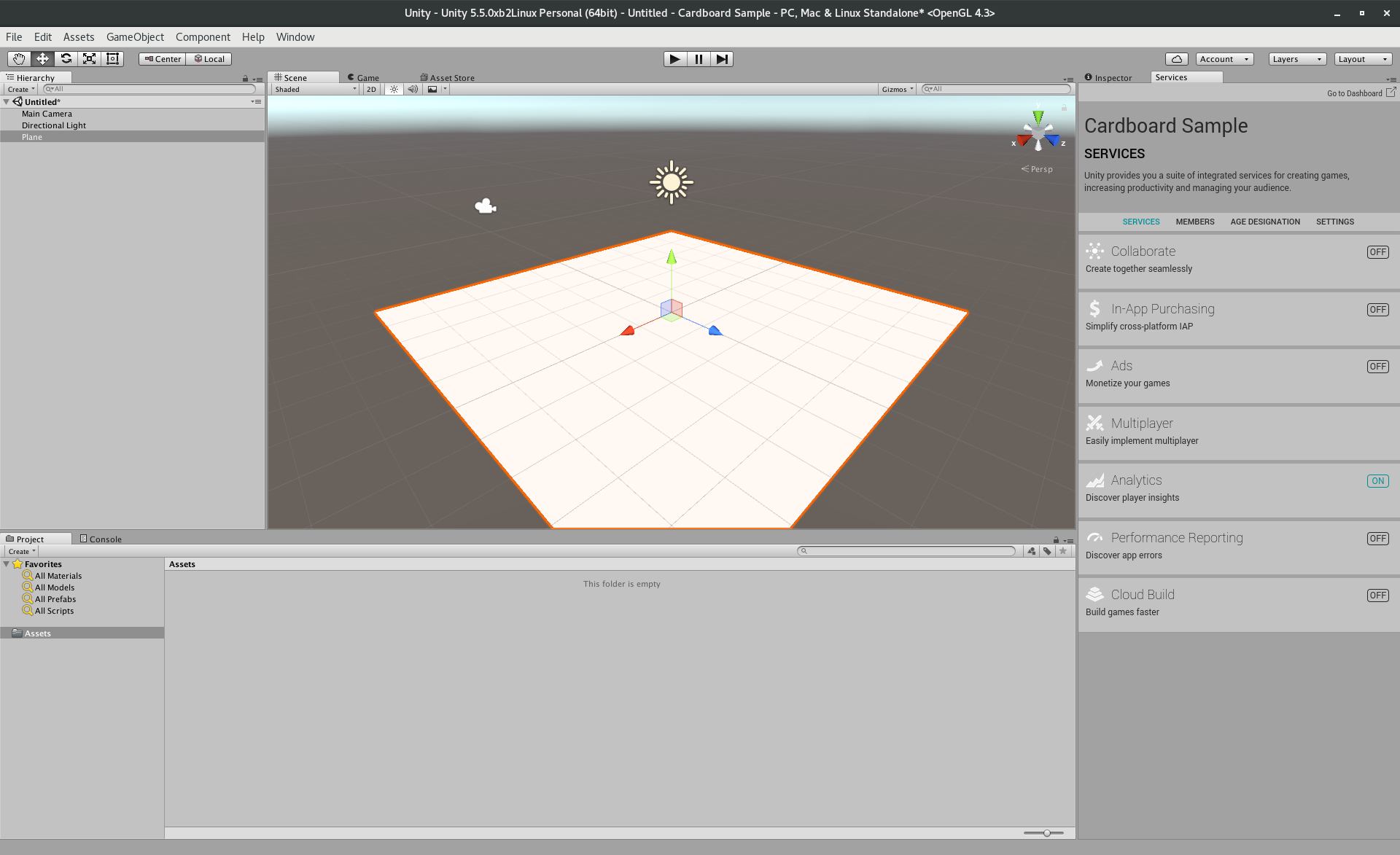
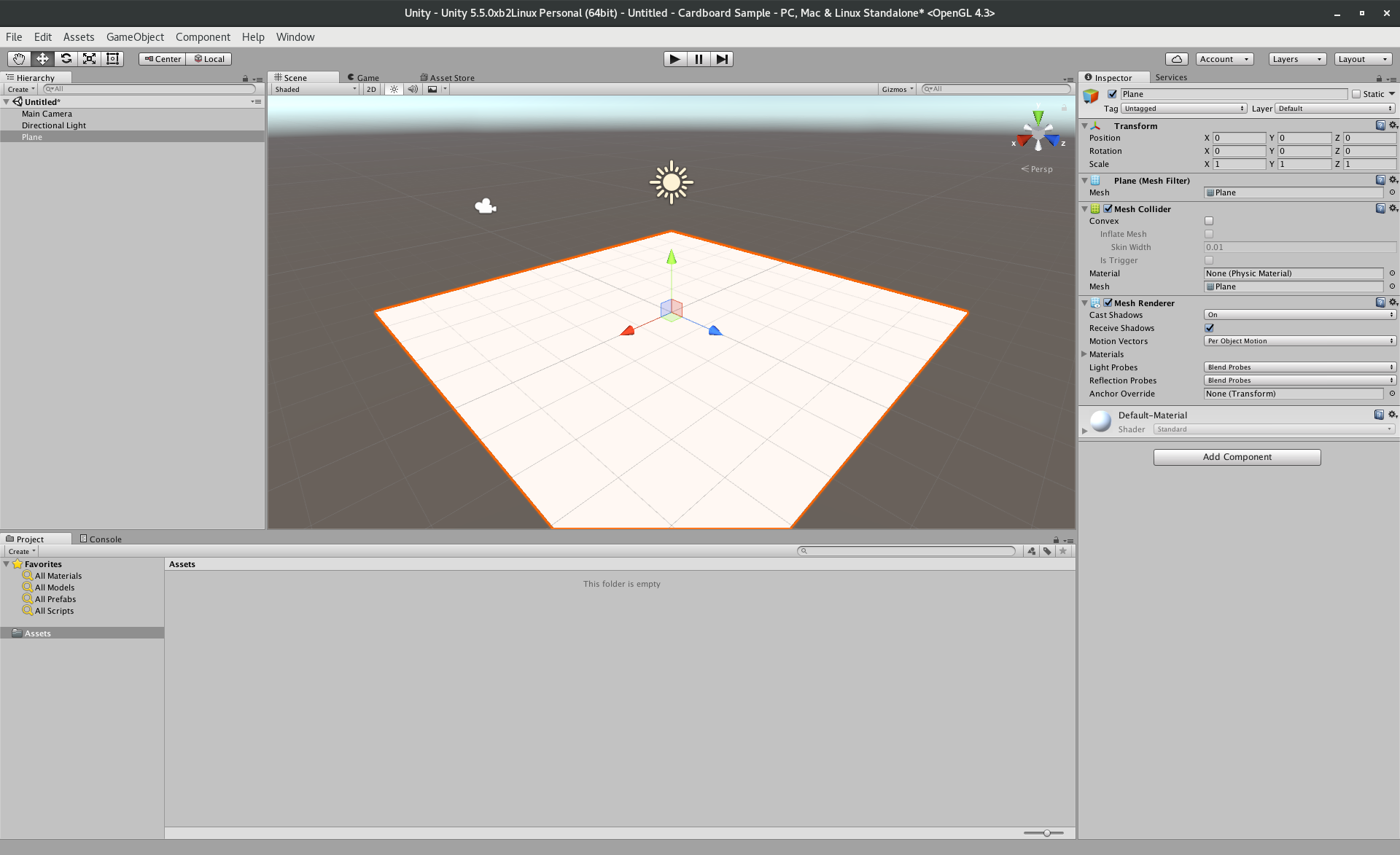
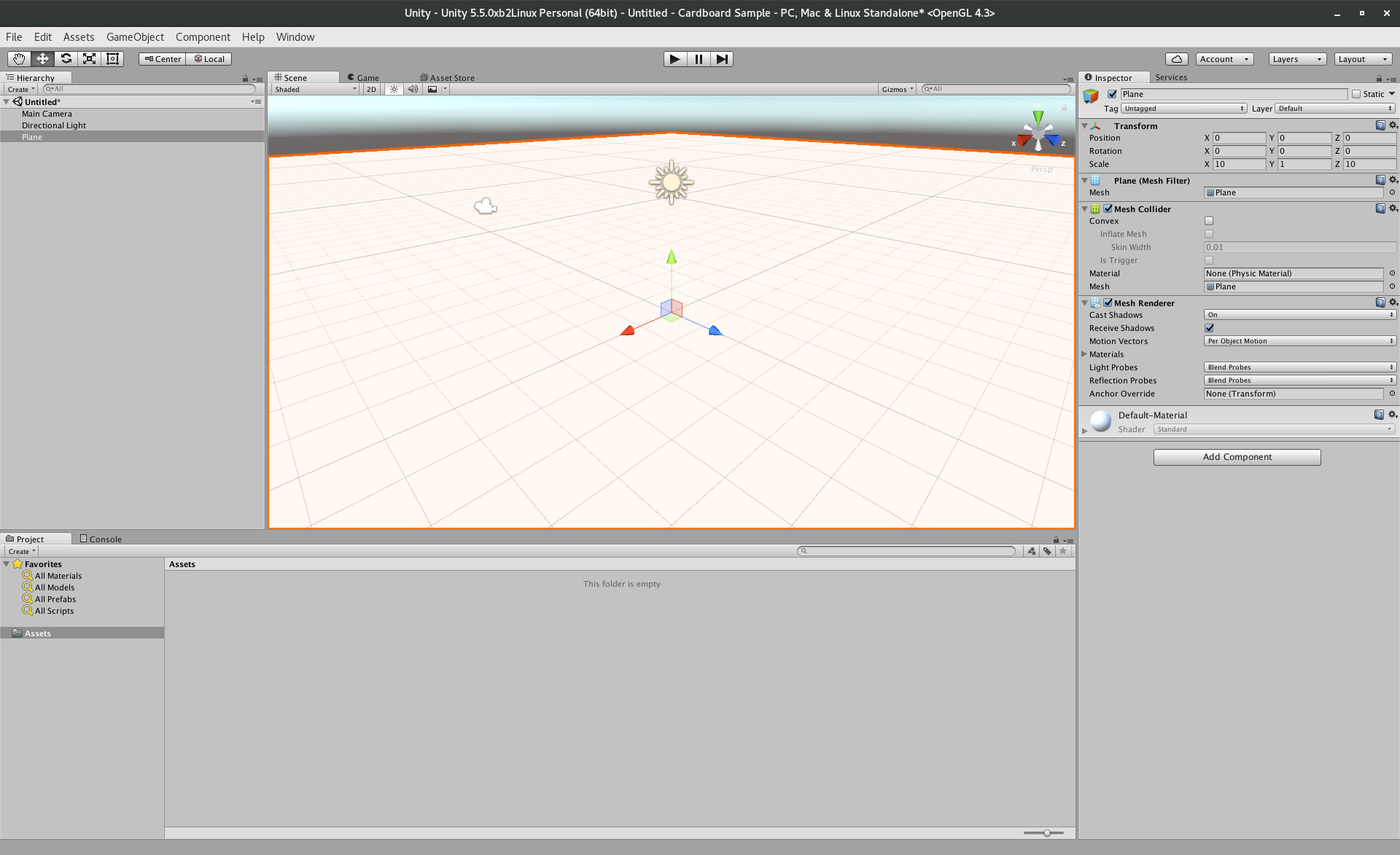
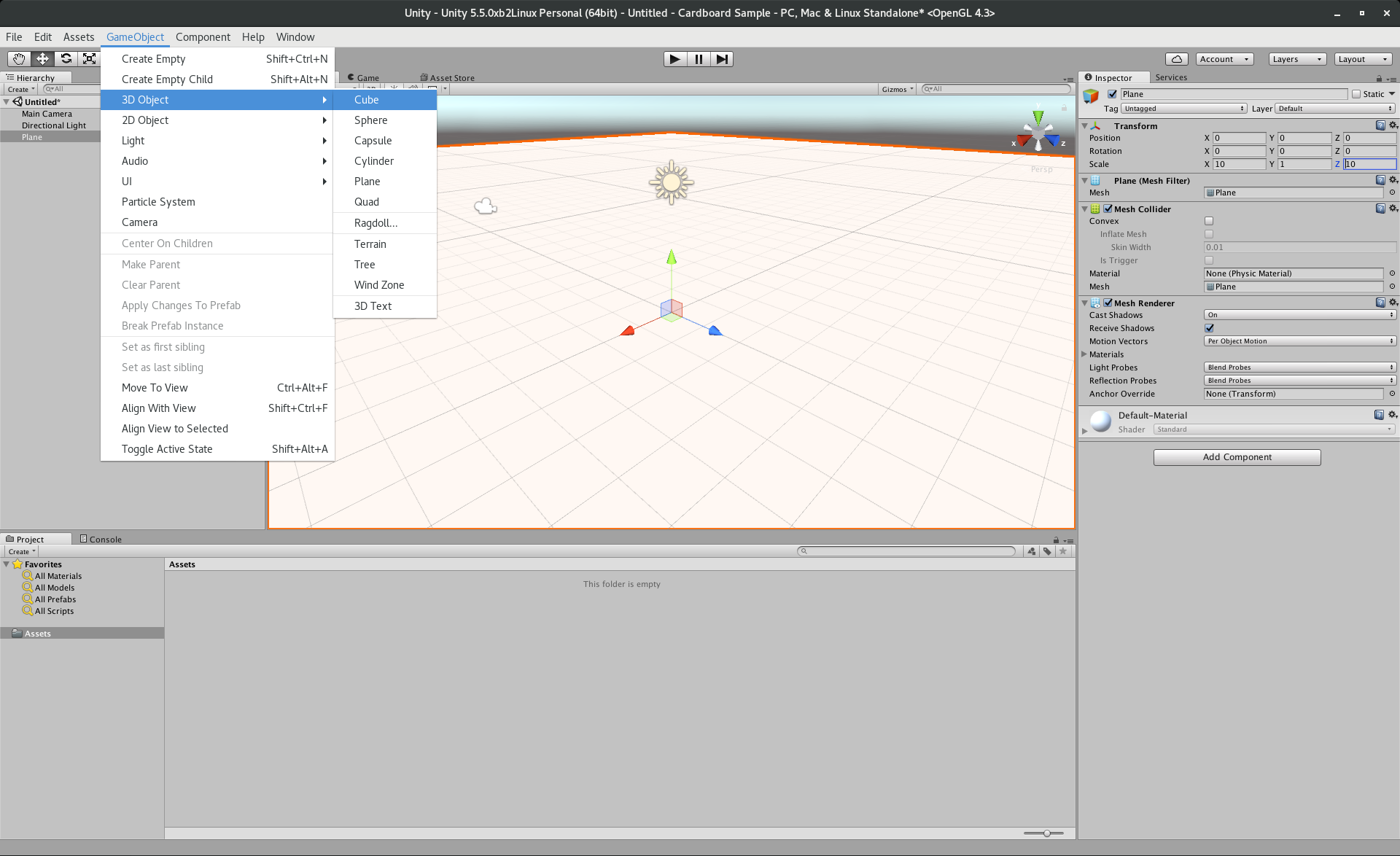
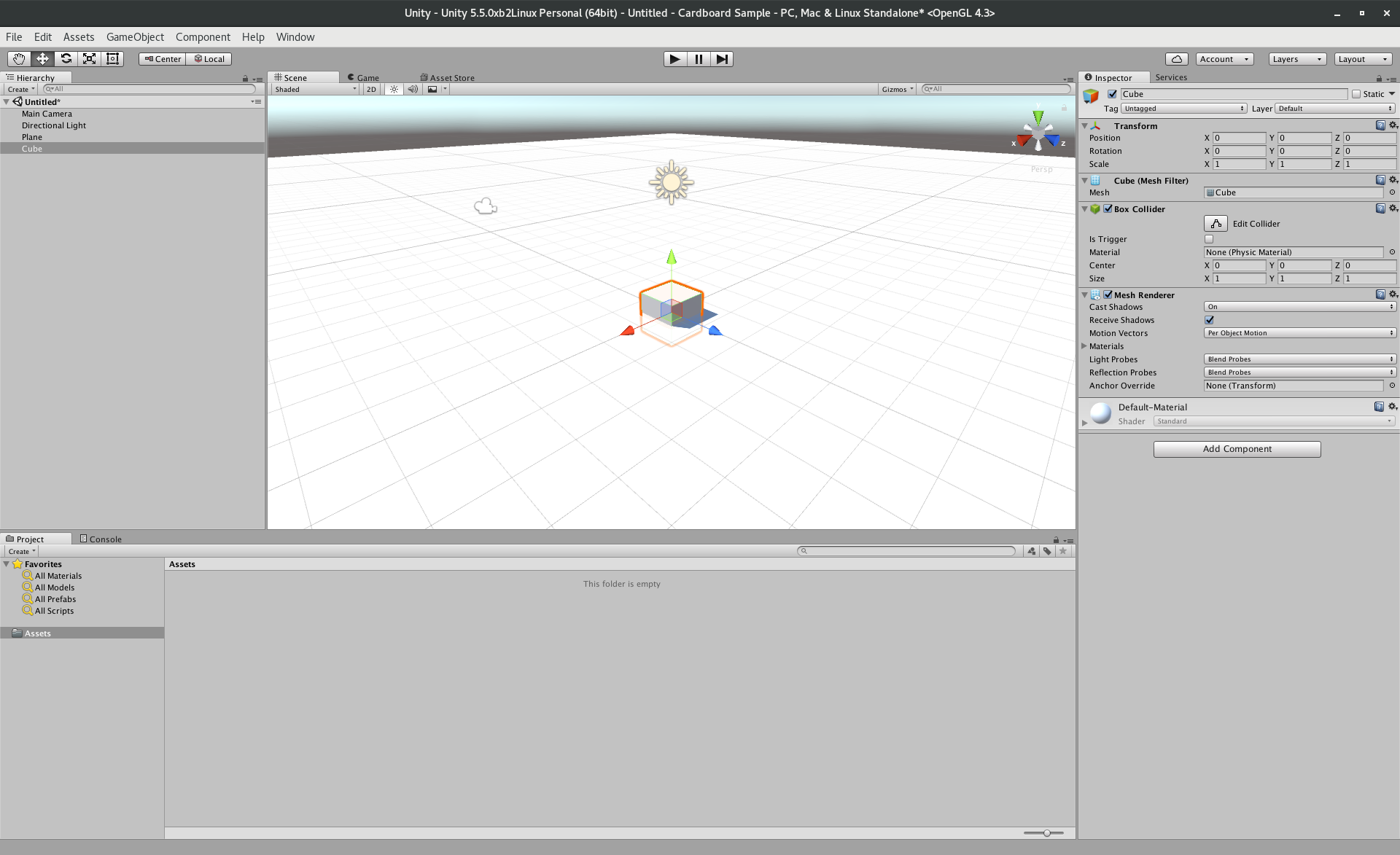
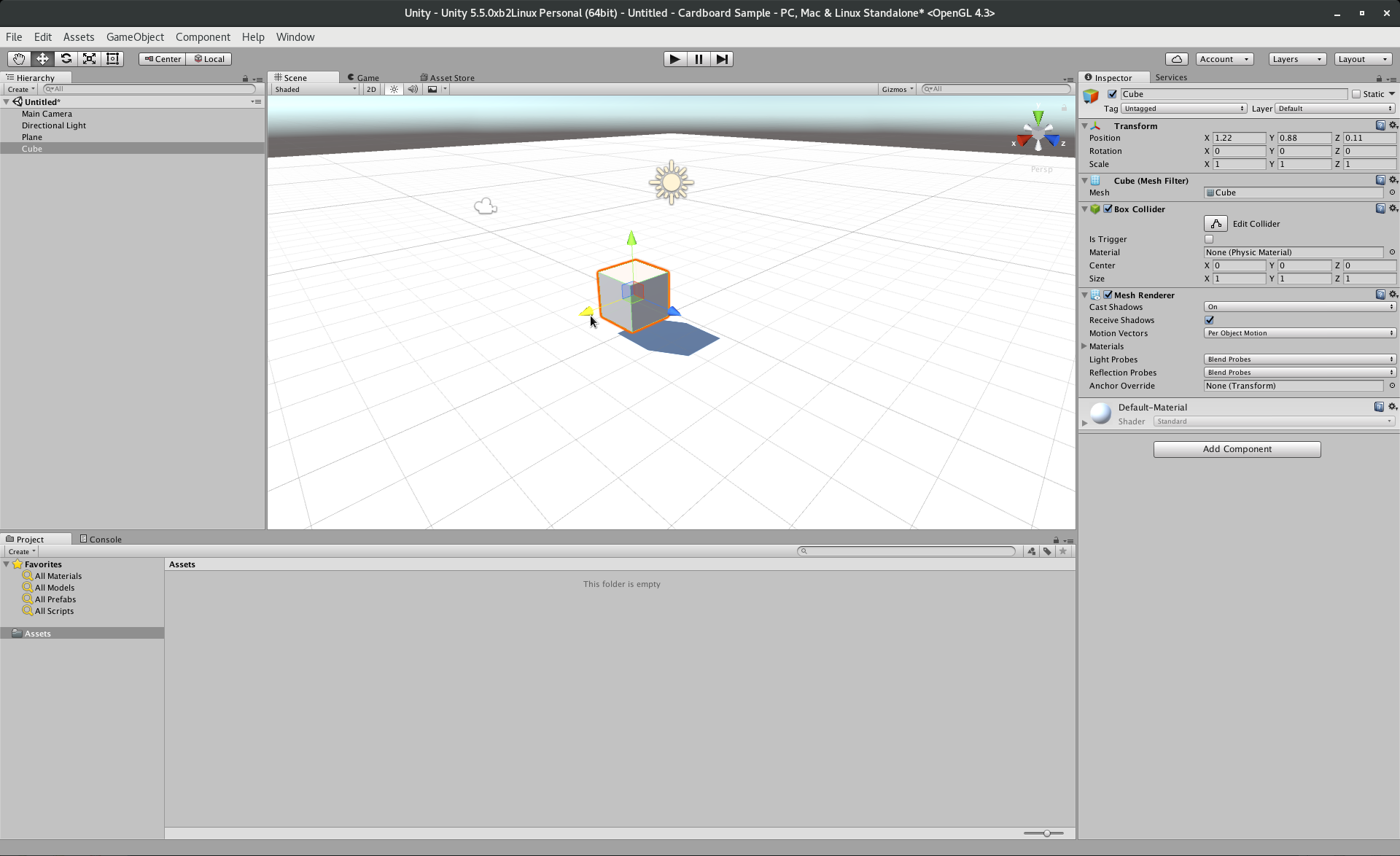
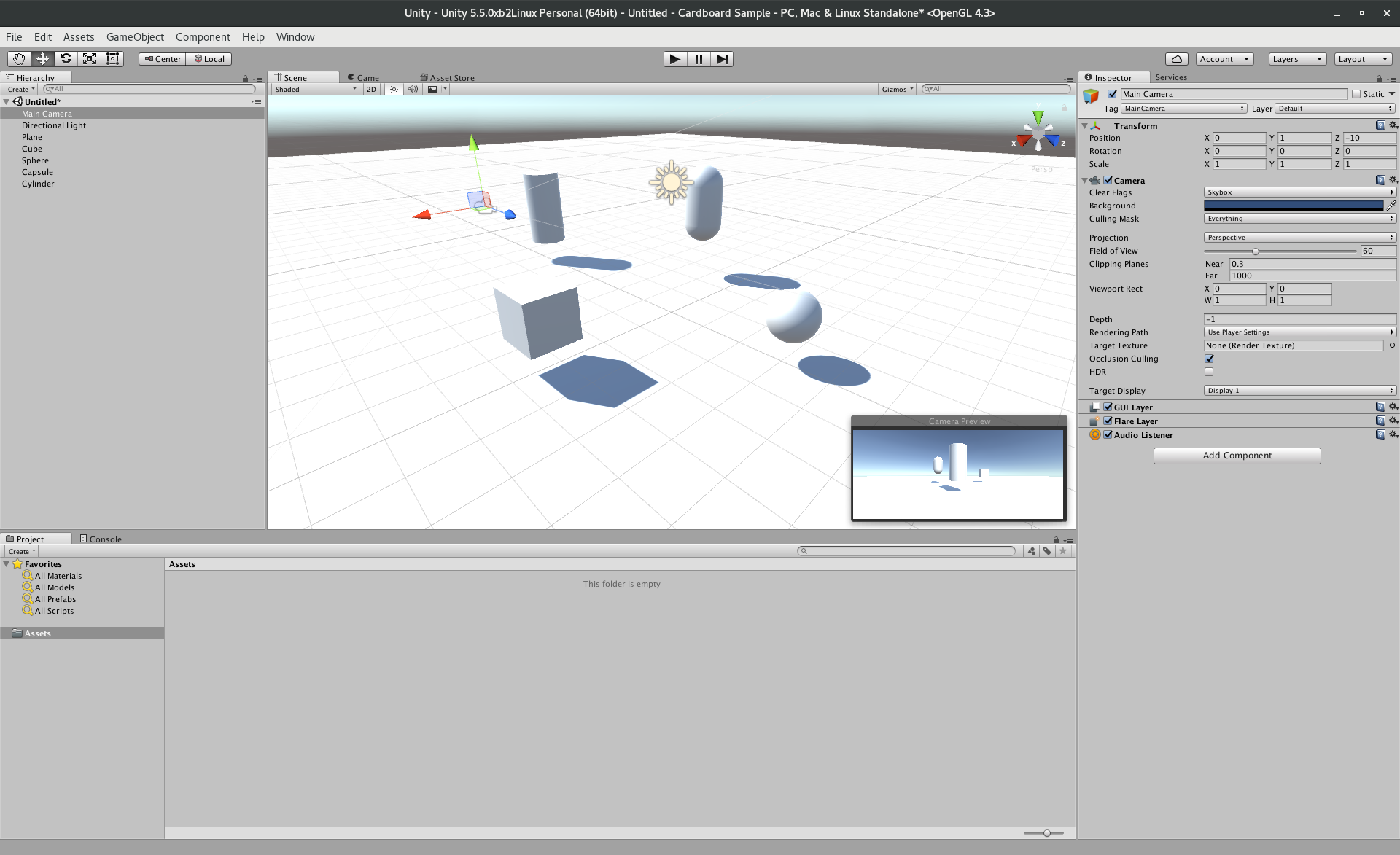
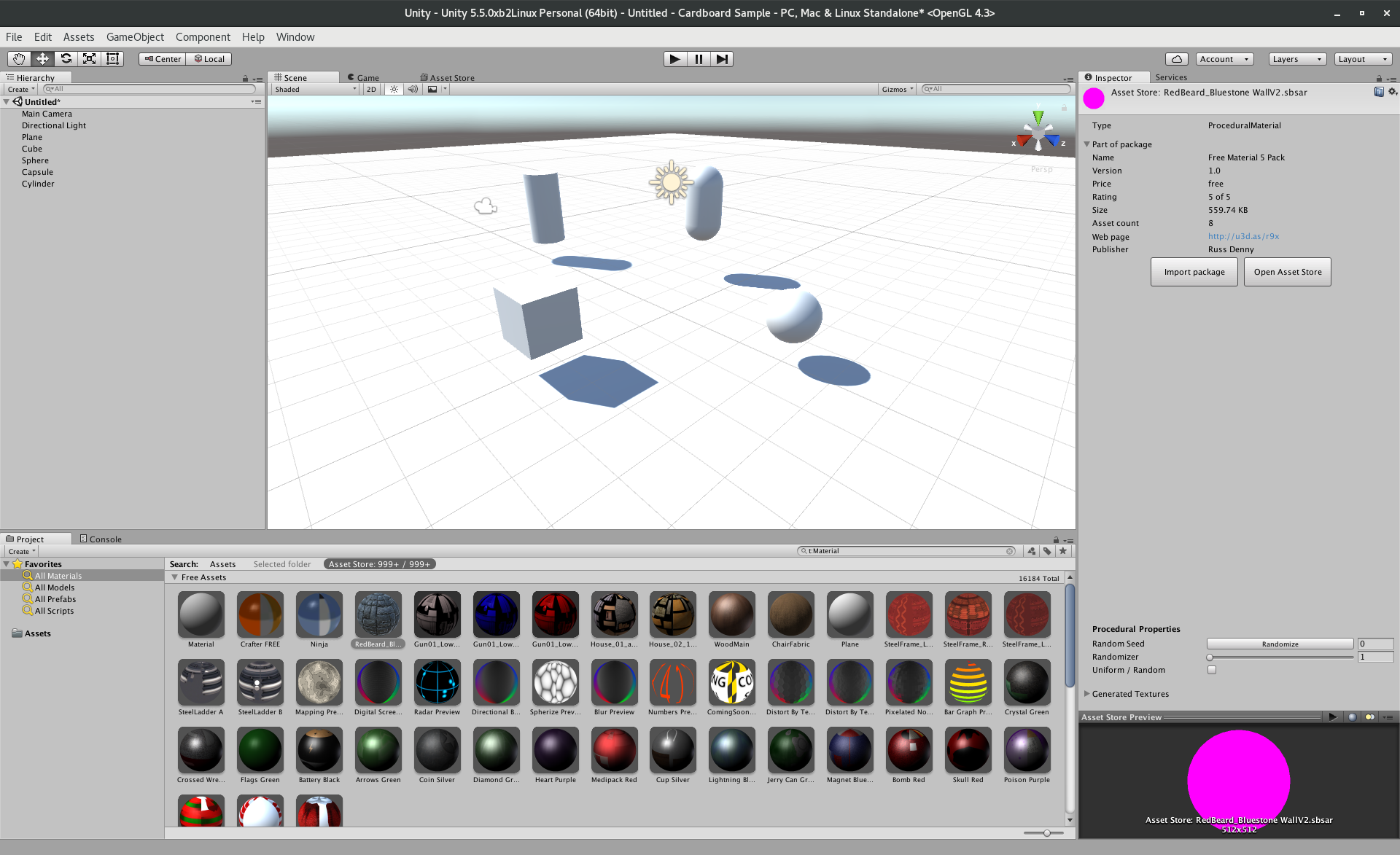
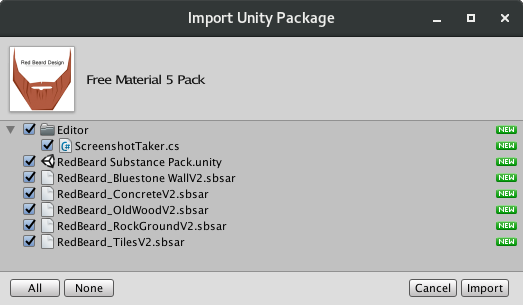
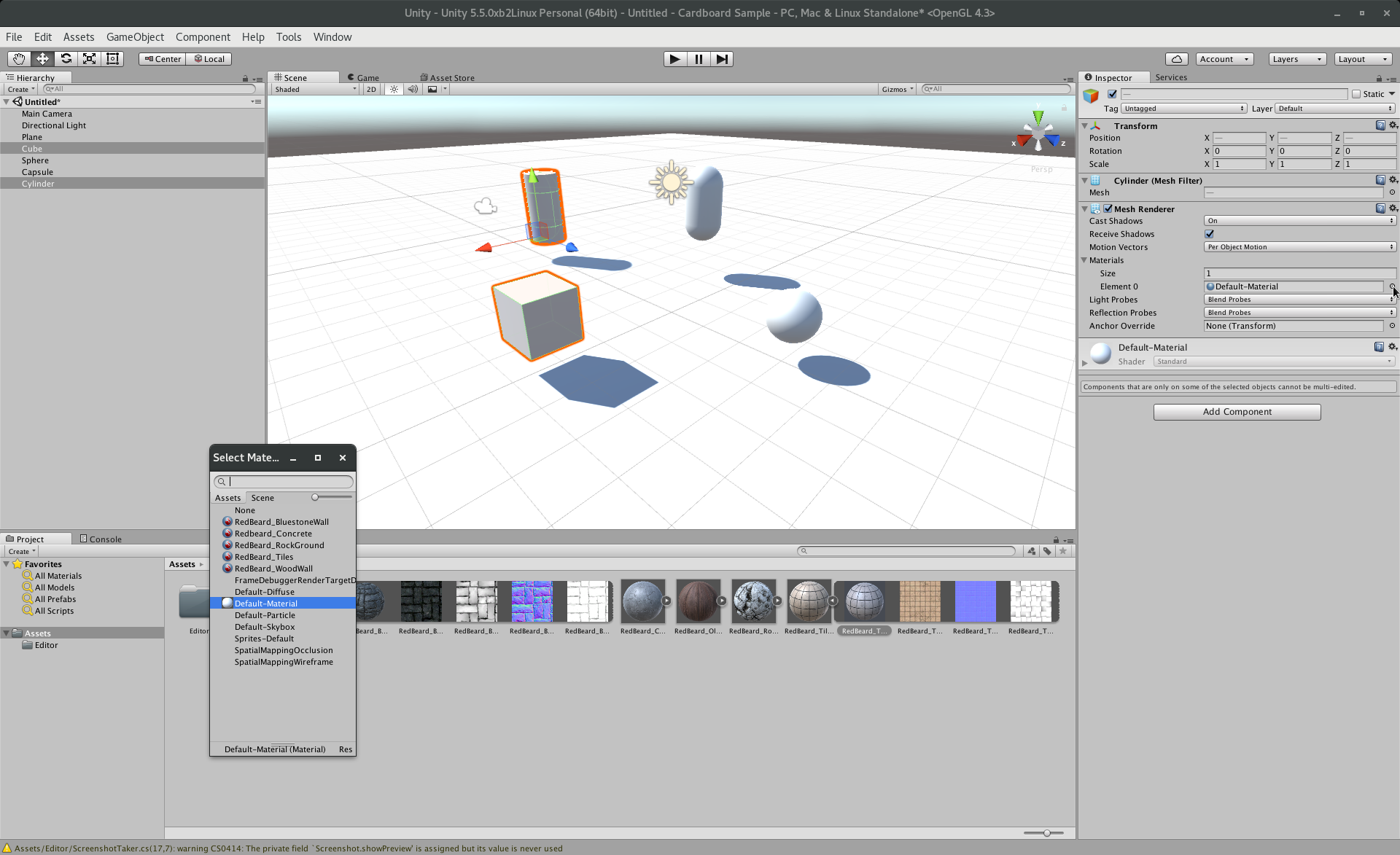
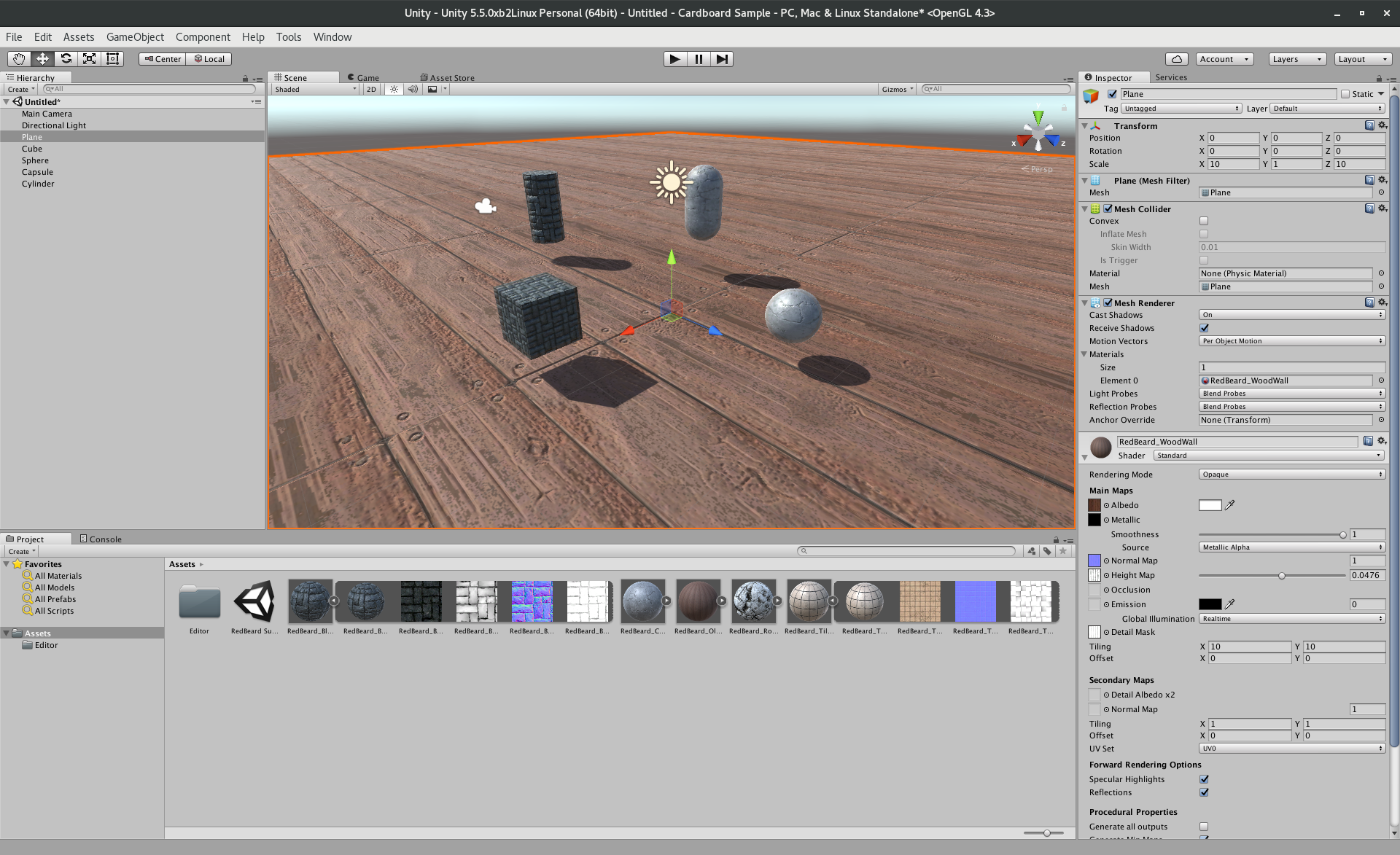
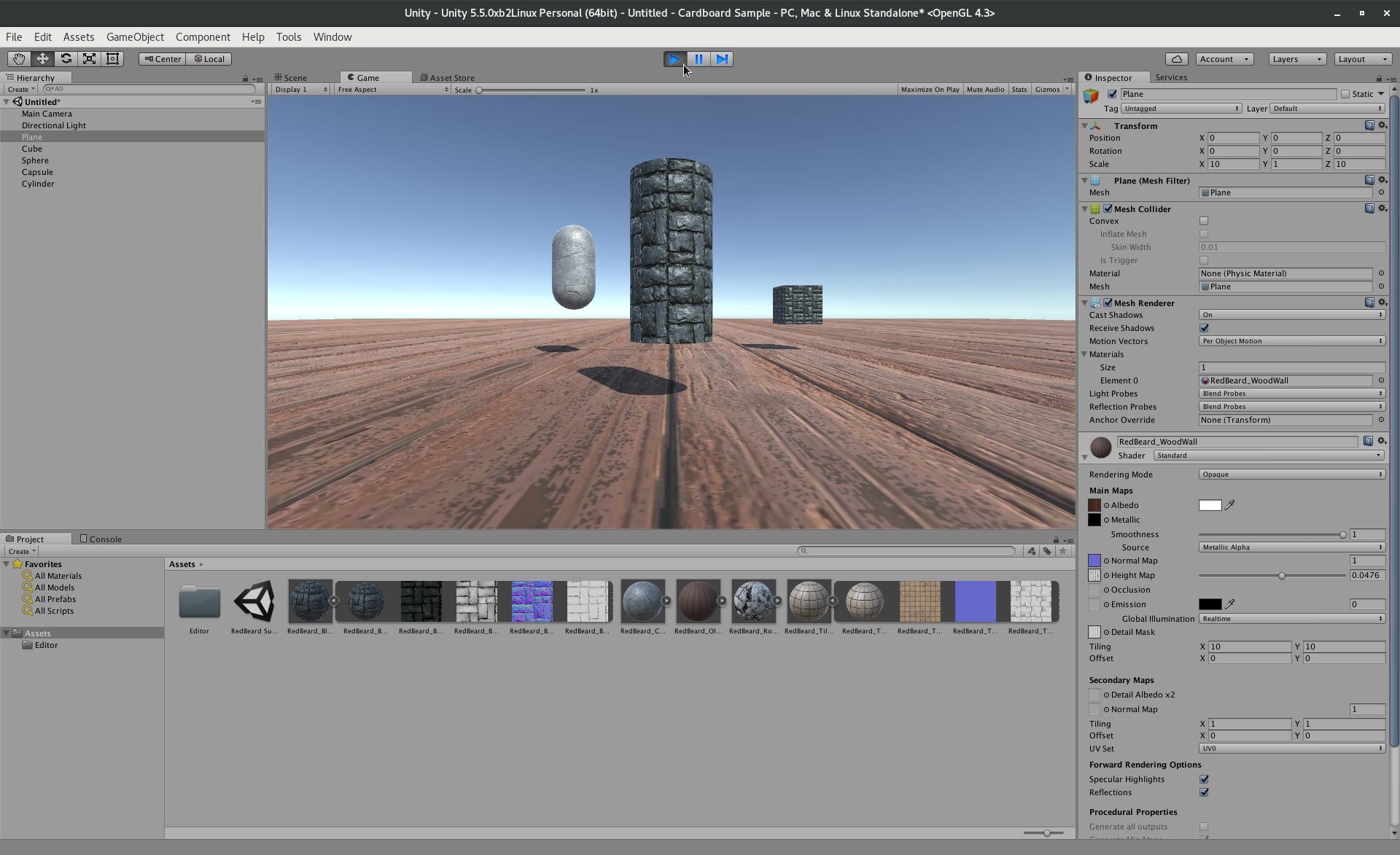
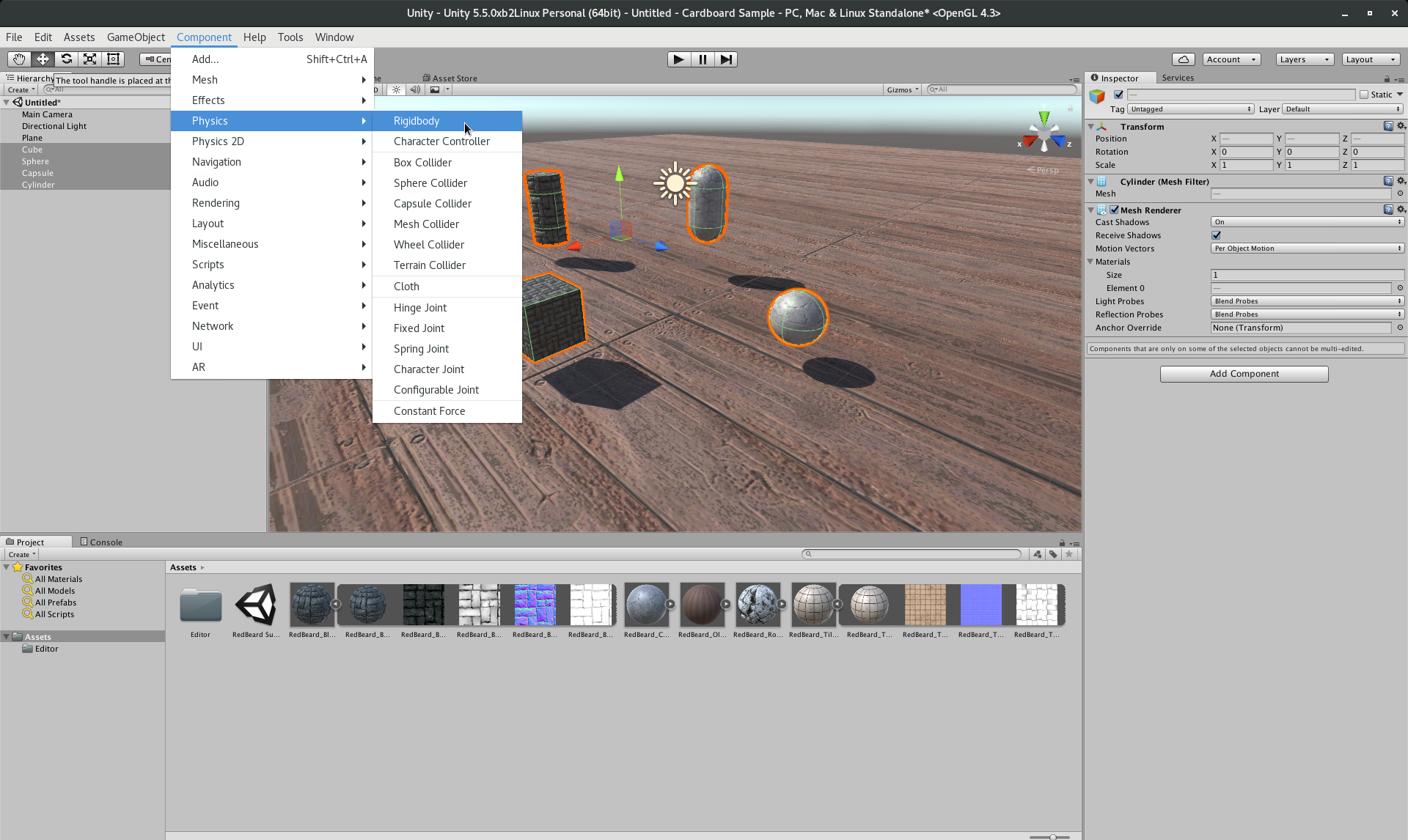
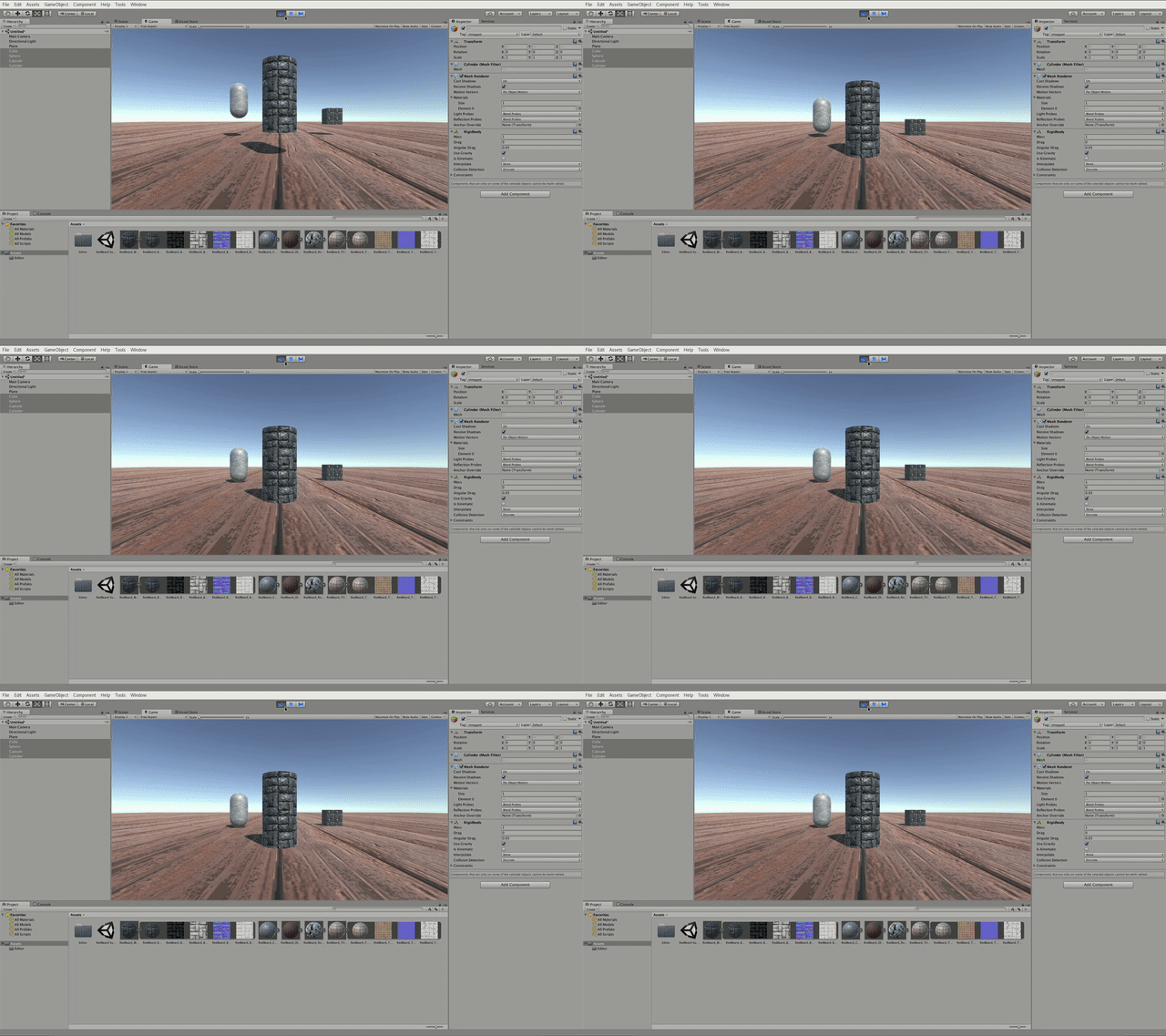
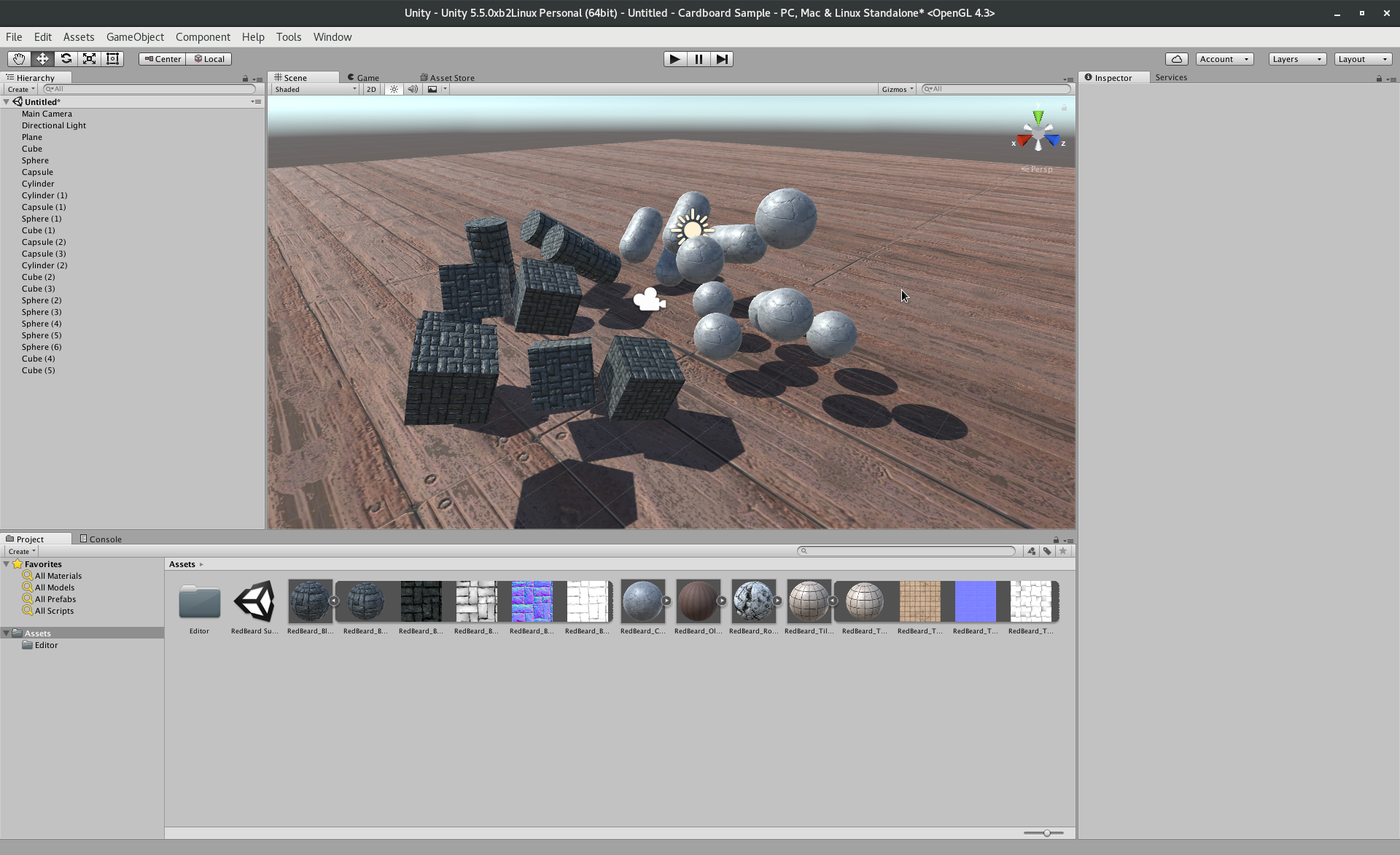
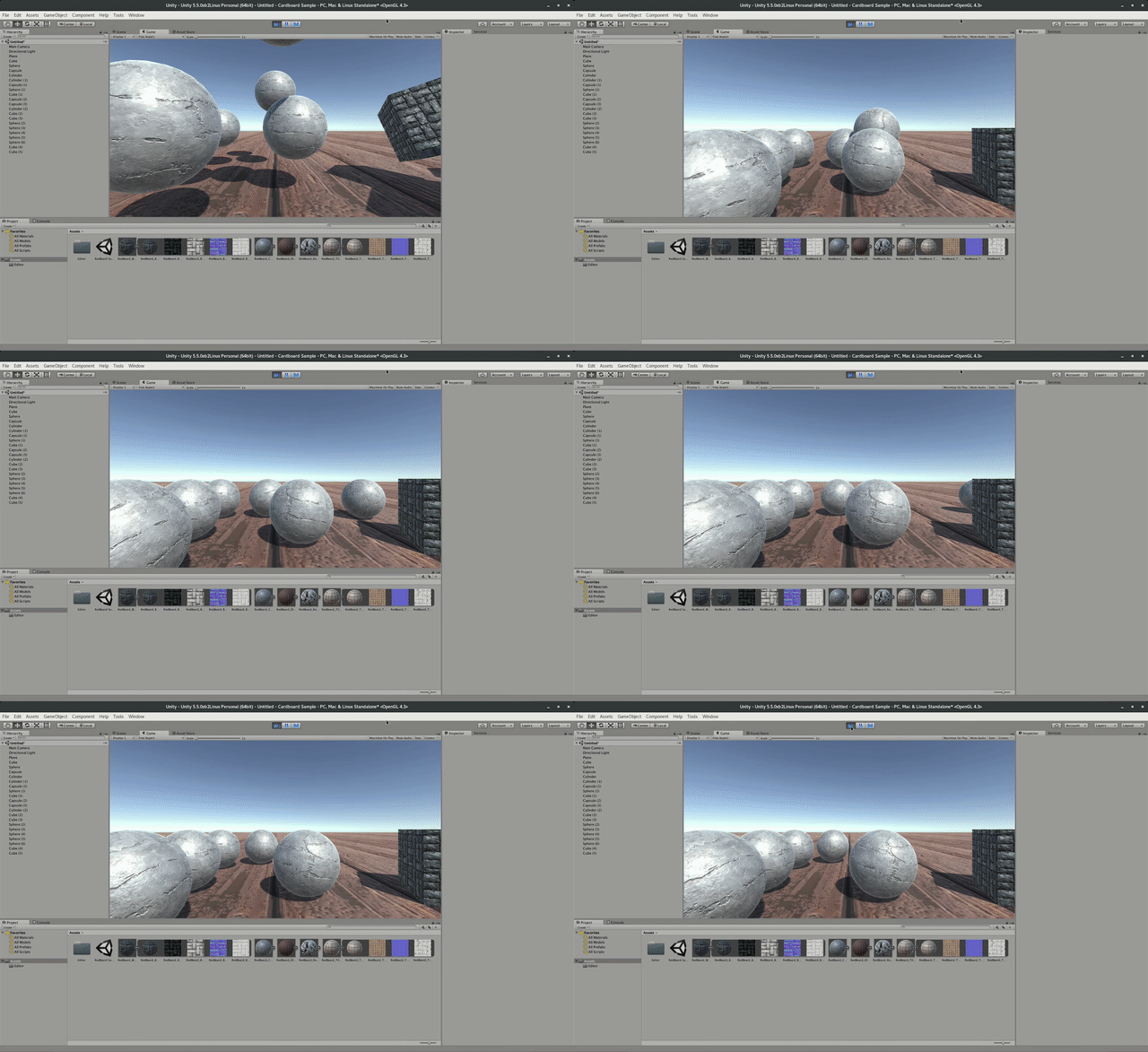
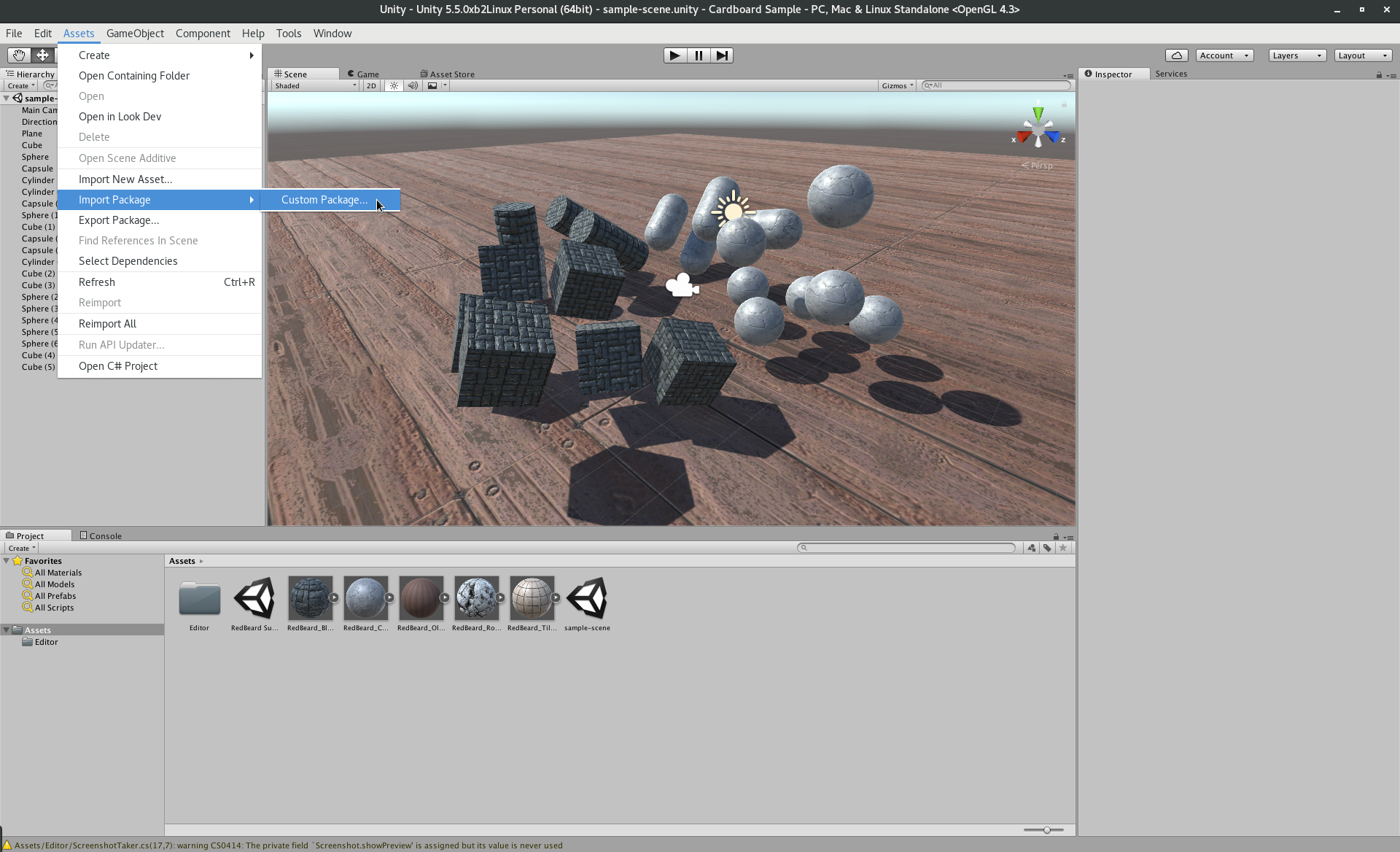
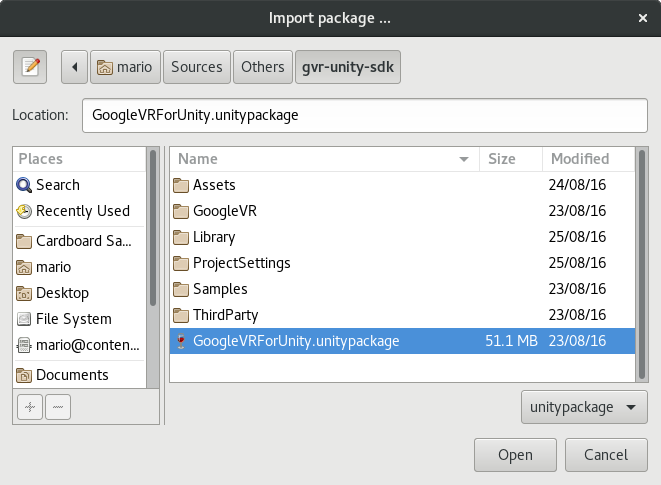
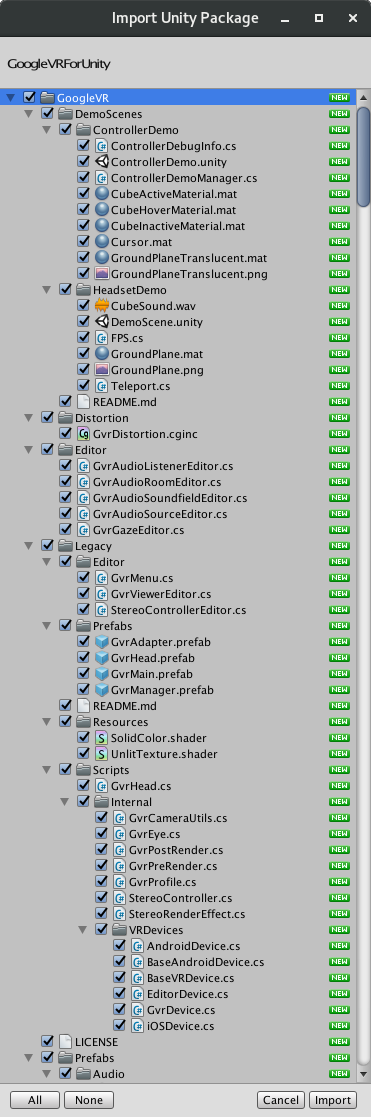
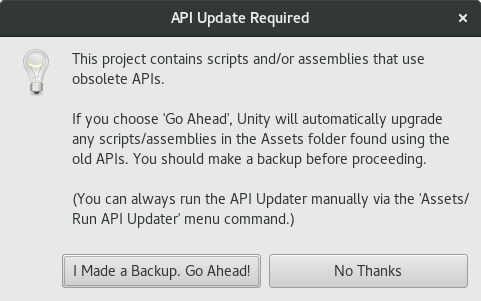
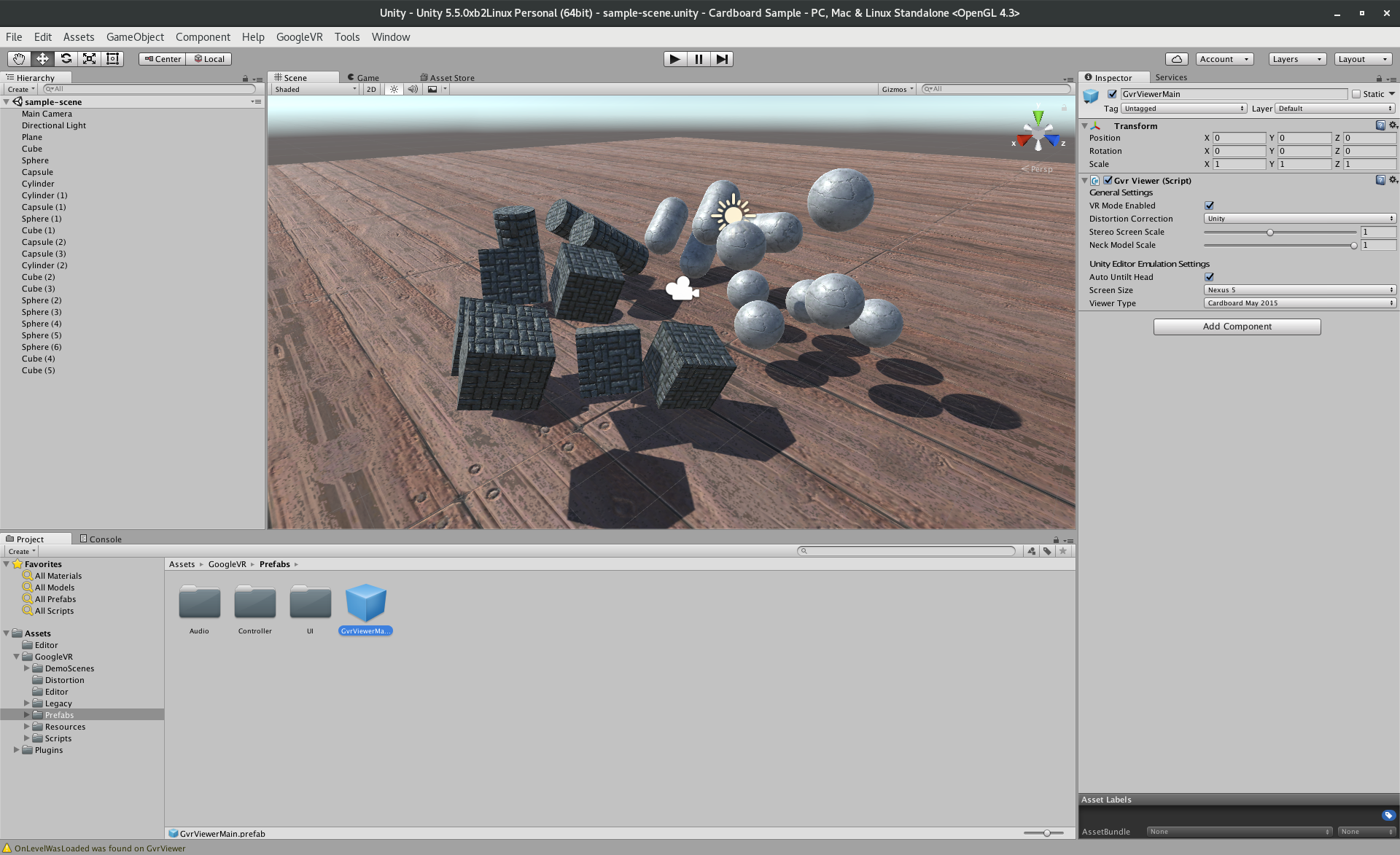
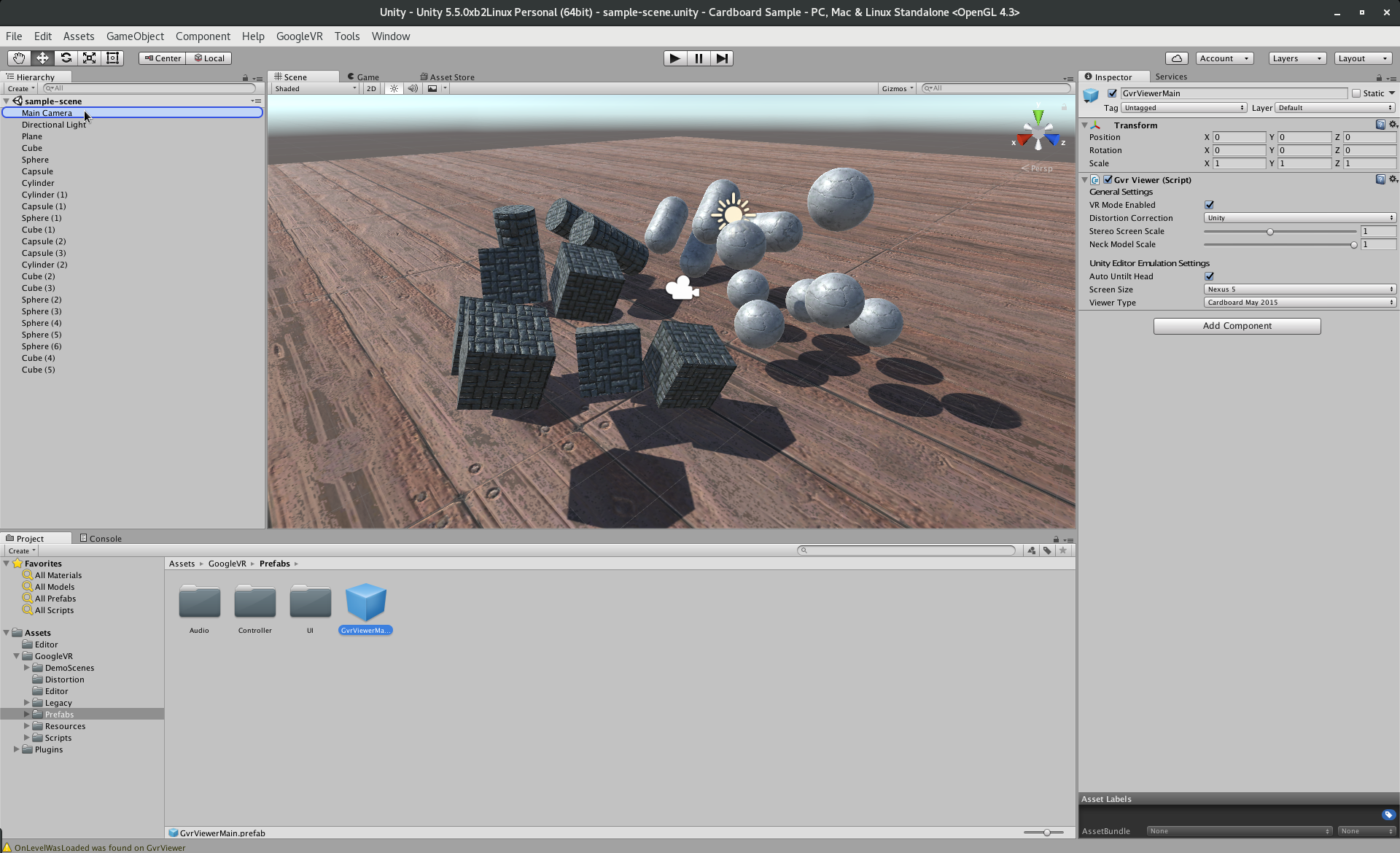
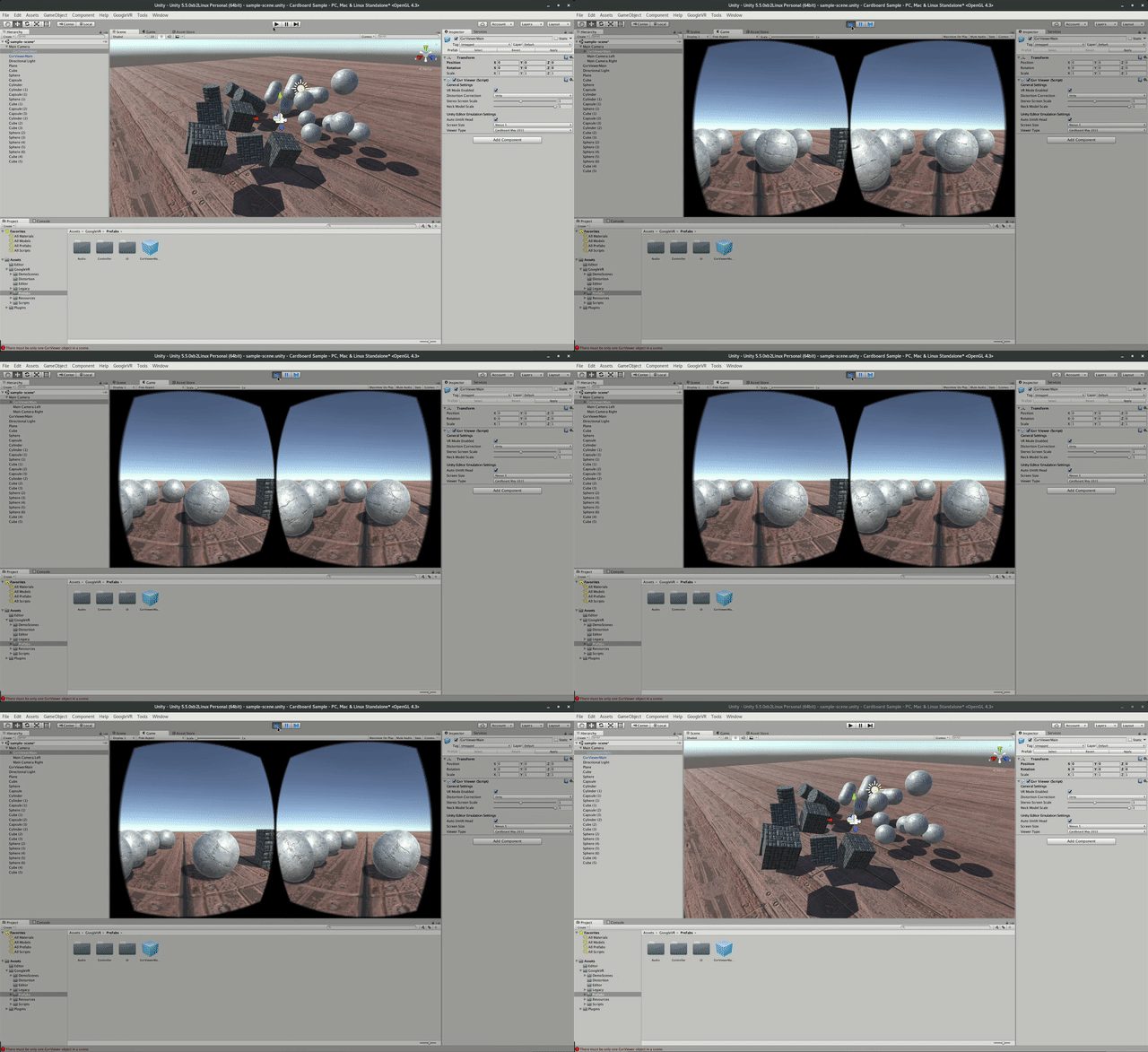
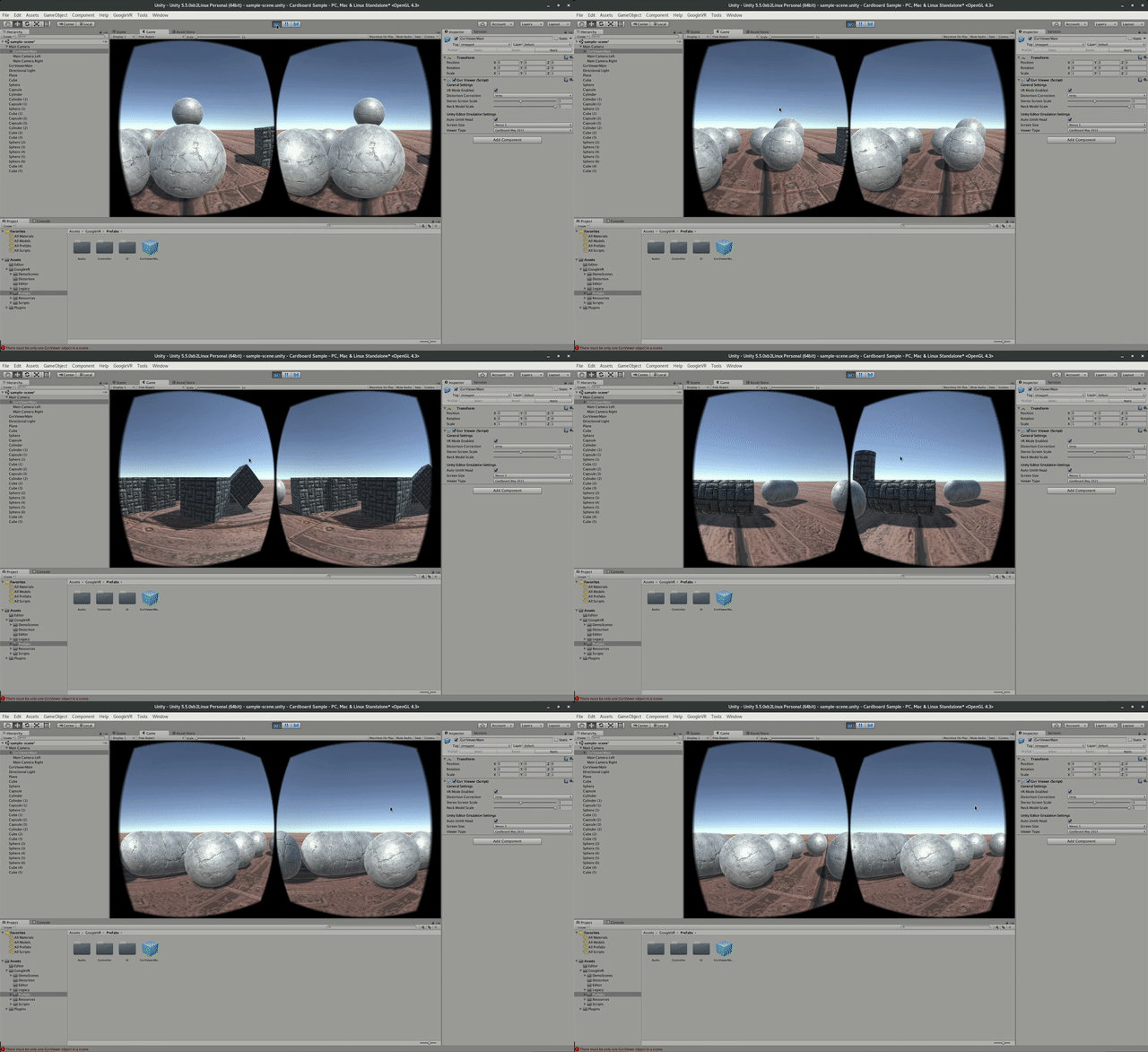
Summary of Unity Demo
- Using Unity is fast
- Using Cardboard SDK is easy
- Using internal renderer for simulating
- GvrIntent start of interoperation Android - Unity
Difficulties in using Unity
- Cost for non free version exists.
- Integration with other (Java) libraries difficult at best.
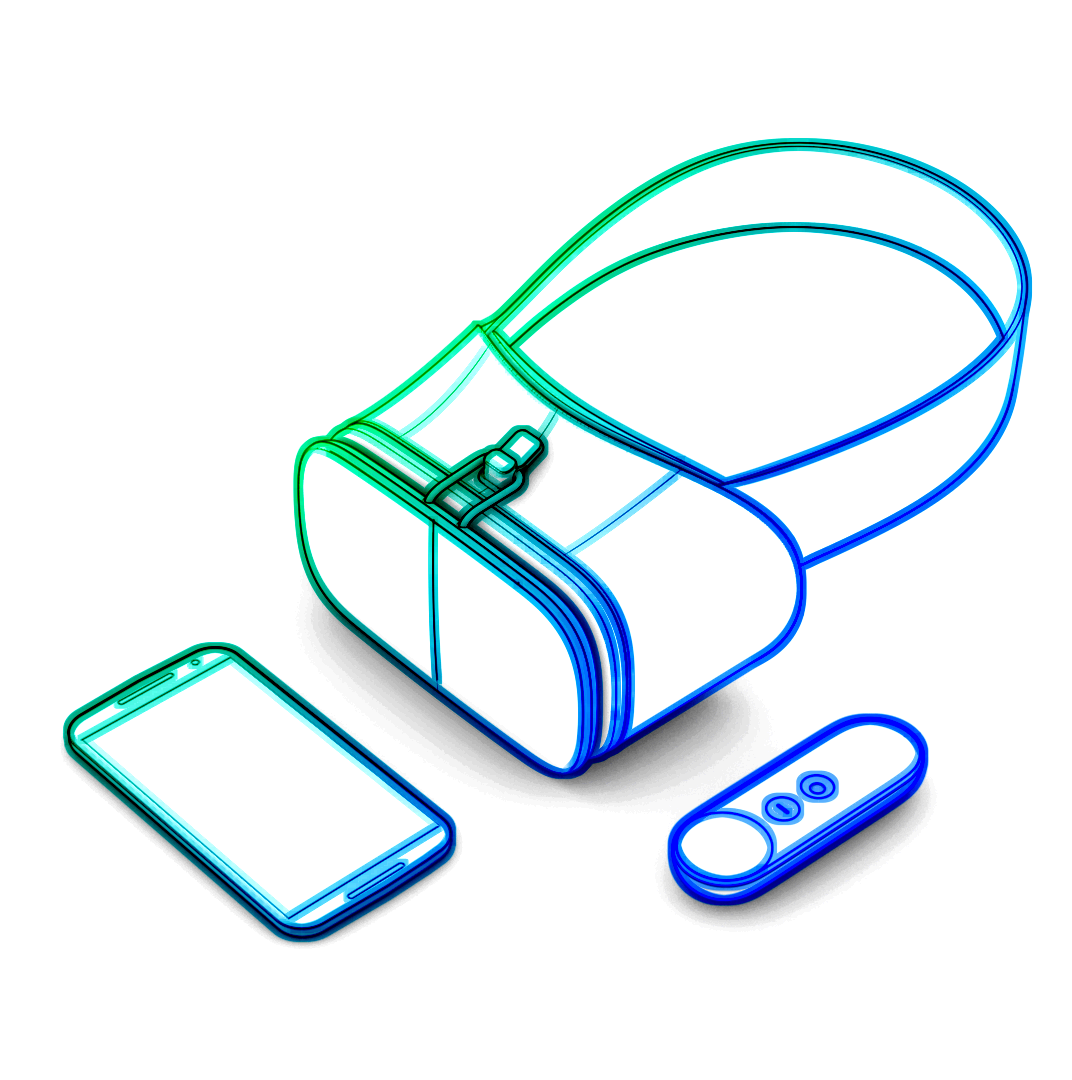
How to use the controller
ControllerManager manager =
  new ControllerManager(this,
    new ControllerManager.EventListener() {

  public void onApiStatusChanged(int state) {
  }

  public void onRecentered() {
  }
});
- ApiStatus changed: If controller gets invalid
- recenter: Long press on home button on controller, should assume current rotation is straight forward ...
Controller controller = manager.getController();
if (controller != null) {
  controller.timestamp
  controller.orientation
  controller.isTouching
  controller.touch
  controller.clickButtonState
  controller.appButtonState
  controller.homeButtonState
  controller.volumeUpButtonState
  controller.volumeDownButtonState
}
- orientation: Quaternion (xyzw)
- polling every frame
VrView on Web/iOS/Android
VRView, available for
- Android
- IOS
- Web
Not for Unity!
Run through the code
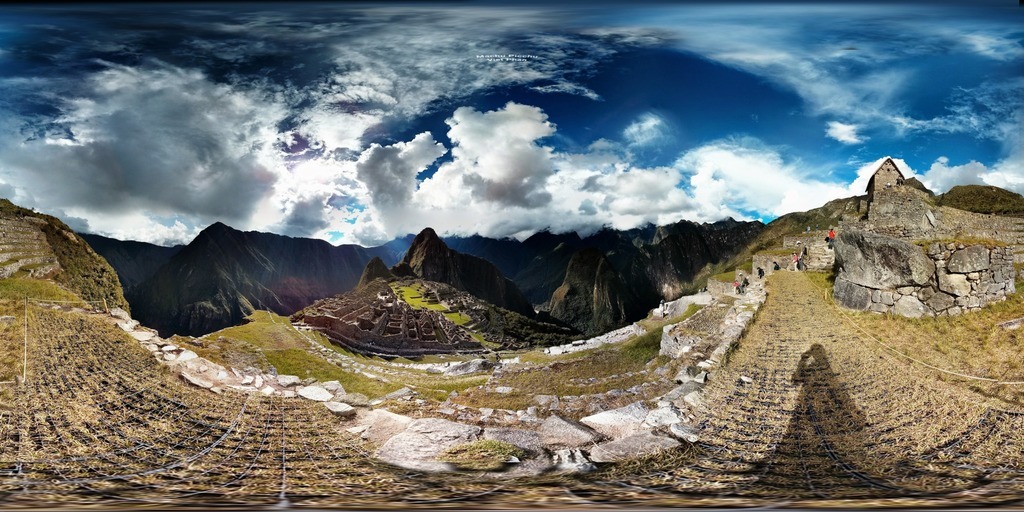
How to write an photosphere app like this
Dependencies
- common.aar, commonwidget.aar and panowidget.aar as new module or directly in gradle.
- compile 'com.google.protobuf.nano:protobuf-javanano:3.0.0-alpha-7'
item_layout.xml
<?xml version="1.0" encoding="utf-8"?>
<com.google.vr.sdk.widgets.pano.VrPanoramaView
  android:layout_width="match_parent"
  android:layout_height="100dp"
  />
@Override public void onBindViewHolder(…) //{
final ResourceItemViewHolder viewHolder =
  (ResourceItemViewHolder) baseHolder;
final Resources resources =
  viewHolder.vrPanoramaView.getResources();
final Bitmap bitmap =
  BitmapFactory.decodeResource(resources,
    elements.get(position));
viewHolder.vrPanoramaView
  .loadImageFromBitmap(bitmap, null);
}@Override public void onBindViewHolder(…) //{ final ResourceItemViewHolder viewHolder = (ResourceItemViewHolder) baseHolder;
final Resources resources =
  viewHolder.vrPanoramaView.getResources();
final Bitmap bitmap =
  BitmapFactory.decodeResource(resources,
    elements.get(position));
viewHolder.vrPanoramaView
  .loadImageFromBitmap(bitmap, null);
}@Override public void onBindViewHolder(…) //{ final ResourceItemViewHolder viewHolder = (ResourceItemViewHolder) baseHolder; final Resources resources = viewHolder.vrPanoramaView.getResources();
final Bitmap bitmap =
  BitmapFactory.decodeResource(resources,
    elements.get(position));
viewHolder.vrPanoramaView
  .loadImageFromBitmap(bitmap, null);
}@Override public void onBindViewHolder(…) //{ final ResourceItemViewHolder viewHolder = (ResourceItemViewHolder) baseHolder; final Resources resources = viewHolder.vrPanoramaView.getResources(); final Bitmap bitmap = BitmapFactory.decodeResource(resources, elements.get(position));
viewHolder.vrPanoramaView
  .loadImageFromBitmap(bitmap, null);
}@Override public void onBindViewHolder(…) //{ final ResourceItemViewHolder viewHolder = (ResourceItemViewHolder) baseHolder; final Resources resources = viewHolder.vrPanoramaView.getResources(); final Bitmap bitmap = BitmapFactory.decodeResource(resources, elements.get(position)); viewHolder.vrPanoramaView .loadImageFromBitmap(bitmap, null); }
Result
Final result of our current demo
What did we do?
- Loaded a equirectangular image into a bitmap
- Let it be displayed by a VrPanoramaView
- Use Daydream SDK to display it
Limitations of Daydream for Android SDK
- using 3D models has to be done by
- either low level OpenGL or
- 3rd party 3d engine